
Choosing the Right Strategy: Cold Boot Forensics vs Live System Analysis
February 9th, 2026 by Oleg AfoninCategory: «General»
The first steps of an investigation are rarely straightforward. Do you shut down the system and image the storage media, taking the safe but slow traditional path? Do you run a triage tool on the live system to grab passwords and keys, or do you reboot into a clean forensic environment? Traditional wisdom might suggest pulling the plug to preserve the state of the disk, but modern encryption makes this increasingly difficult. During the initial stage of an investigation, the choice usually falls between two primary strategies: deploying a live triage tool on the running system or booting into a clean, external environment.
In this article, we look at the trade-offs between Elcomsoft Quick Triage and Elcomsoft System Recovery to help you decide which tool fits the scenario. On one hand, using Elcomsoft Quick Triage on a live system allows you to utilize the active user session, bypassing volume encryption and capturing passwords and volatile evidence that are otherwise inaccessible. On the other, booting into a clean environment with Elcomsoft System Recovery offers a stable workspace independent of the host OS. However, this stability comes at a cost: you lose access to volatile memory, and if the disk is encrypted with BitLocker, a cold boot leaves the data locked unless you have the recovery key.
When to use live triage (Elcomsoft Quick Triage)
When you encounter a running computer, the active user session is your most valuable asset. The currently authenticated user has effectively done the heavy lifting for you: they signed in to Windows, mounted encrypted volumes such as BitLocker containers, and loaded the necessary keys into memory. By deploying Elcomsoft Quick Triage directly into this environment, you gain immediate access to data that is often impossible to recover from a cold disk image. This includes volatile RAM artifacts like running processes and active network connections, but more importantly, it unlocks “at-rest” data protected by the user’s logon credentials. Because the tool runs within the authenticated session, it can transparently bypass DPAPI and App-Bound encryption, instantly extracting saved web browser passwords, session cookies, and tokens that would otherwise require the user’s password to decrypt offline.
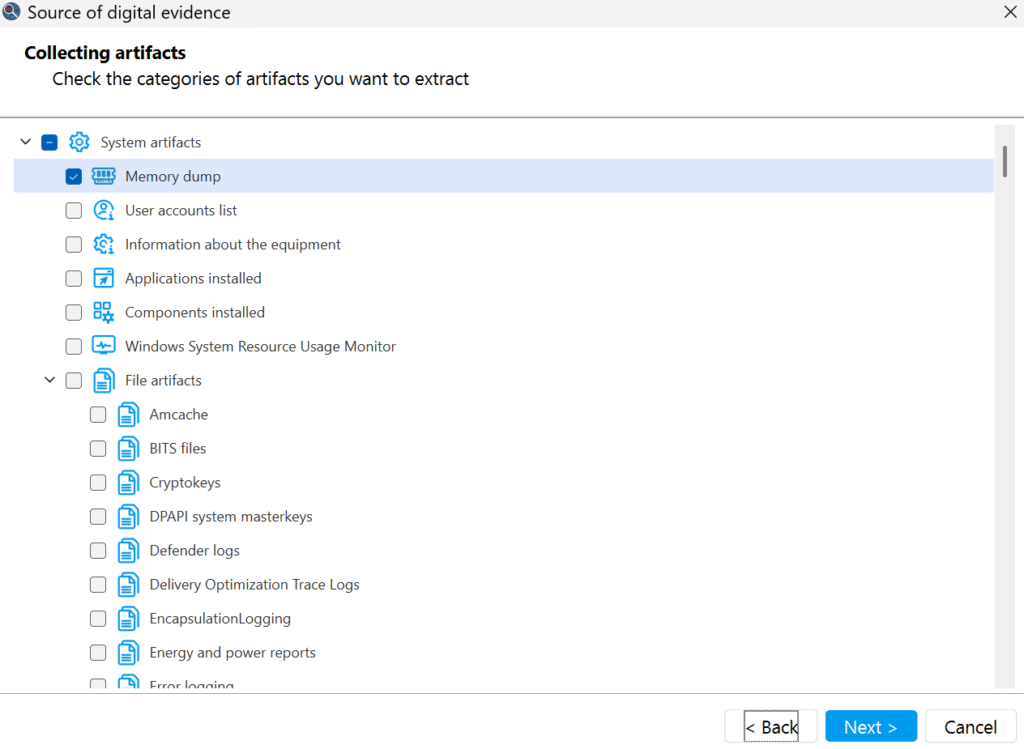
Beyond simply bypassing encryption, the live approach is defined by speed and focus. The goal of triage isn’t to capture everything, but to filter out the noise and capture what matters for immediate review. Elcomsoft Quick Triage is designed to grab critical evidence such as browsing history, system logs, and credential stores in minutes rather than hours, allowing investigators to make rapid decisions in the field or prioritize devices for the lab. However, this method comes with its share of compromises. Running any executable on a suspect machine inevitably alters the system state and leaves a footprint in memory. Furthermore, you are operating on “hostile” territory: resident antivirus software or endpoint protection tools may attempt to block the acquisition tool or quarantine its components, potentially disrupting the process before the evidence is secured.
The clean boot strategy (Elcomsoft System Recovery)
If the live environment is too risky or the system is already powered down, the alternative is to bypass the host operating system entirely. Booting from an external drive with Elcomsoft System Recovery loads a trusted Windows PE environment, effectively circumventing the OS installed on the target machine. In this “cold” state, the computer’s resident defenses – whether it’s an aggressive antivirus, endpoint detection software, or a rootkit – never execute. This gives the investigator a clean slate to work from, ensuring that the acquisition process won’t be blocked, throttled, or quarantined by background processes. It allows for unrestricted, read-only access to the file system, making it ideal for creating forensically sound disk images or quickly extracting system files and registry hives for lab analysis without worrying about file locks or timestamp modifications.
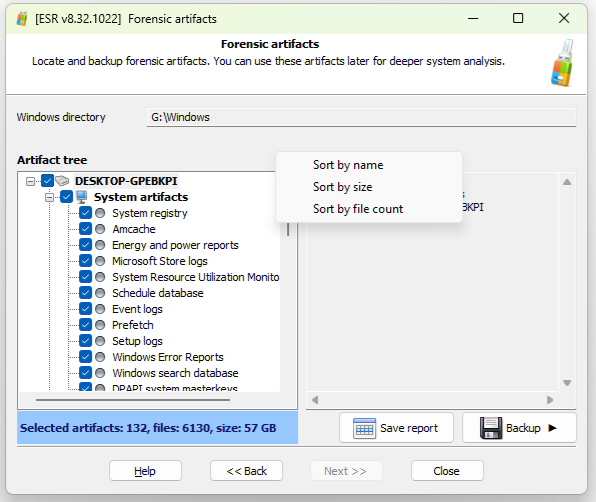
However, this sterility comes at a significant cost: you leave behind the encryption keys that reside in the volatile memory. By rebooting, you instantly destroy all volatile data, including running processes, open network connections, and RAM artifacts. More critically, you lose the transparent decryption provided by the user’s logon session. If the system drive is protected by BitLocker, which is standard on many modern devices, a cold boot leaves you with an unreadable, encrypted volume. Unless you have the 48-digit BitLocker recovery key on hand, the clean slate strategy hits a hard wall, rendering the system drive inaccessible and the tool useless for data extraction.
A question of encryption and credentials
Even if you successfully boot into a clean environment, you may find the target data locked with full-disk encryption, most commonly BitLocker. In a live session, the volume is transparently mounted and accessible; however, booting from an external device leaves the drive in a locked state as the encryption keys for BitLocker boot volumes are TPM-sealed. Unless you possess the specific numeric recovery key to manually mount the volume, the investigation ends before it begins, as the file system remains an unreadable block of randomized data.
The problem persists even if you gain access to the file system. Modern Windows protections like the Data Protection API (DPAPI) and App-Bound encryption rely on the user’s logon credentials to secure sensitive secrets such as saved browser passwords and session cookies. In a live environment, these keys are resident in memory. In an offline analysis, however, you experience “credential decay”: you can extract the database files, but they remain encrypted. Without the user’s logon password to derive the necessary master keys, extracting these secrets becomes impossible, turning the clean forensic environment into a trap where you have the files but not the means to read them.
Choosing the right strategy: cold boot vs live system analysis
Run Elcomsoft Quick Triage when you encounter a powered-on system with an authenticated user session, especially if BitLocker or other full-disk encryption is active. In this state, the risk of pulling the plug is simply too high; doing so destroys the volatile keys required to decrypt the drive and the user credentials needed to unlock App-Bound secrets. The live approach is the only viable option when you need to capture RAM artifacts, active network connections, or browser passwords that rely on the current logon session for decryption. It is also the preferred choice when speed is critical, allowing you to extract the most relevant evidence in minutes for immediate analysis while the system is still accessible.
Conversely, run Elcomsoft System Recovery when the computer is already powered down, if the user’s logon password is unknown, or if you suspect the system is infected with malware that could compromise a live tool – but be aware of system drive encryption that may lock you out if you don’t have a recovery key. This method is your best option for creating a verifiable, forensically sound disk image or for resetting a forgotten Windows password to regain access to a locked account. Ideally, the most robust strategy is a hybrid one: if the system is running, perform a rapid live collection with Quick Triage to secure volatile evidence and encryption keys first, and then reboot into System Recovery to create a clean, write-blocked disk image for deep analysis in the lab.

- iOS Forensic Toolkit 10.11: bootloader extraction for Apple Watch Series 4 and 5, Apple TV 4K 2nd Gen21 September, 2026
- Elcomsoft Quick Triage 2.2 adds a timeline, a plugin system, and file system snapshots3 September, 2026
- Elcomsoft System Recovery 8.38: Built-In BitLocker TPM Exploit Library, Browser Artefact Extraction, and Imaging Checksums26 August, 2026
- EIFT Firewall: a new free tool for controlled agent sideloading3 August, 2026
- Elcomsoft Phone Breaker 11.04: more reliable downloads from iCloud Drive30 July, 2026