
IoT Forensics on the Rise: Extracting More Apple Watch, Apple TV 4K Devices
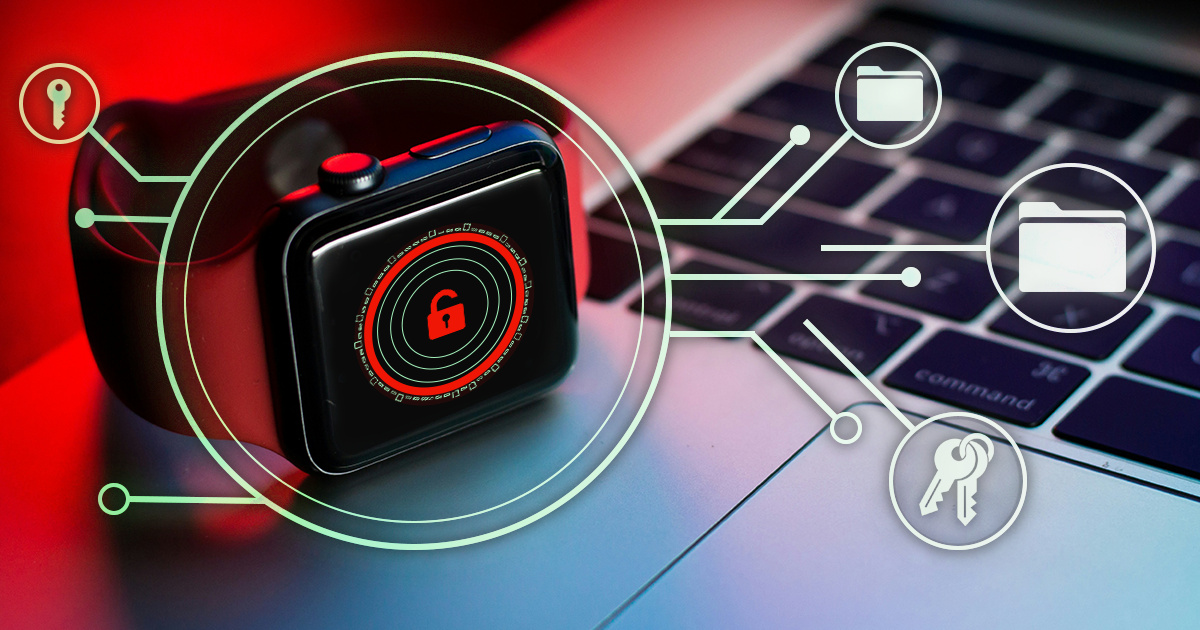
September 22nd, 2026 by Oleg AfoninSeven years after checkm8, iOS Forensic Toolkit 10.11 adds bootloader-level extraction for the Apple Watch Series 4 and Series 5, as well as the second-generation Apple TV 4K. In each case the result is the full file system image and the decrypted keychain. This is the first time that the low-level extraction boundary has moved past the A11 generation, and the reason is a SecureROM exploit called usbliter8, published in June 2026.
Elcomsoft Quick Triage 2.2: Timeline, file system snapshot, and a plugin engine
September 3rd, 2026 by Oleg AfoninElcomsoft Quick Triage 2.2 adds three things: a Timeline view that merges events from every timestamped artifact into one chronology, a file system snapshot that copies metadata without file contents, and a plugin architecture for artifact parsers. The release also brings MSA password attacks, OpenDocument parsing and recursive archive parsing in full-text search, and a list of fixes, but here we’ll mostly talk about the first three.
The True Meaning of Consent in ‘Consent Extractions’
August 24th, 2026 by Oleg AfoninIn law enforcement use a “consent extraction” means the examiner knows the passcode. It rarely signals owner agreement. That would be a vocabulary issue if the passcode remained the whole key. Since iOS 26.4 it does not. Stolen Device Protection is on by default, and away from familiar locations it requires Face ID or Touch ID before the “Trust This Computer” prompt. The passcode still unlocks the device and confirms Trust. SDP adds a second requirement on top. An extraction that once needed one credential now needs two, and legal systems treat the two credentials as different kinds of thing.
Write Blockers in Forensics: What Controls How You Use Them?
August 19th, 2026 by Oleg AfoninIn simple terms a write blocker sits between the original drive or device and your forensic workstation and stops any write commands from getting through, while letting you read every bit. Along with checksums, write blockers help maintaining chain of custody, ensuring that the imaging step is repeatable and verifiable. Hardware write blockers are physical devices you plug the source media into, software write blockers are installed on the acquisition system, and the former type is more robust than the latter. The point, however, is not speed or convenience, it is to make a forensic copy without changing the original, so the evidence you work from is the same as the evidence you seized. And here comes the question: which laws or standards mandate using a write blocker?
The iOS 27 Recovery Menu: What It Means for Forensics
August 5th, 2026 by Oleg AfoniniOS 27 and iPadOS 27, currently in beta, add a bootable recovery menu to the iPhone and iPad. Hold the power button while the device starts up and you land in a small pre-boot environment with six options, one of which is the old “connect to computer” recovery mode. This is the same idea Apple silicon Macs have had for years, and it is overdue on the phone.
Special macOS Firewall: Safe Sideloading of the EIFT Extraction Agent
August 3rd, 2026 by Oleg AfoninElcomsoft iOS Forensic Toolkit begins low-level extraction by sideloading the extraction agent, and the agent will not run until the phone has completed one or two checks against Apple’s servers. Network requests, on a phone that is evidence. That single requirement is why we have shipped three different firewalls over the past three years. The newest one, EIFT Firewall, is a free macOS application and a direct replacement for the 2023 script.
When the iCloud Backup Is the Only Copy Left
July 31st, 2026 by Oleg AfoninAn iCloud backup is often the only surviving copy of data no longer on the device. Two ordinary situations show why, and neither involves anything clever on the suspect’s part. What could possibly go wrong, and how can you access the data?
There is a whole industry selling software to protect data: full-disk encryption, rights management, key servers, the works. Almost none of it lives in an ordinary home or a two-person office. At home people protect a file the way the application in front of them allows. They type a password into WinRAR, or into Word, or into a PDF, and move on with the day. Here is the thing: none of those applications is a security product. WinRAR is a compression tool, Word is a word processor, Acrobat is a document viewer. They just happen to carry enough encryption to be used as a lock, and that is exactly why people use them. It is right there, it is free, and it needs no IT department.
How to recover deleted data from your iPhone
July 28th, 2026 by Oleg AfoninYou accidentally deleted an important file from your iPhone, panicked, and hit the web looking for a way to get it back. Instantly, you’re hit with a barrage of search results pushing “iPhone data recovery” software. If you look closely, you’ll notice almost all of these apps are low-quality rebrands or slightly tweaked forks of just a handful of identical tools.
Microsoft Office has protected documents with passwords since Word 2.0 in 1991, and for most of that history the protection was weaker than stated. The word “password” in Office covers two completely different things. One is encryption, and it can be strong. The other is a flag that tells the application to refuse an edit, and it has never been strong, because it cannot be. Confusing the two is the most common mistake we see, and it is the reason a document someone was sure they had locked often opens in seconds.
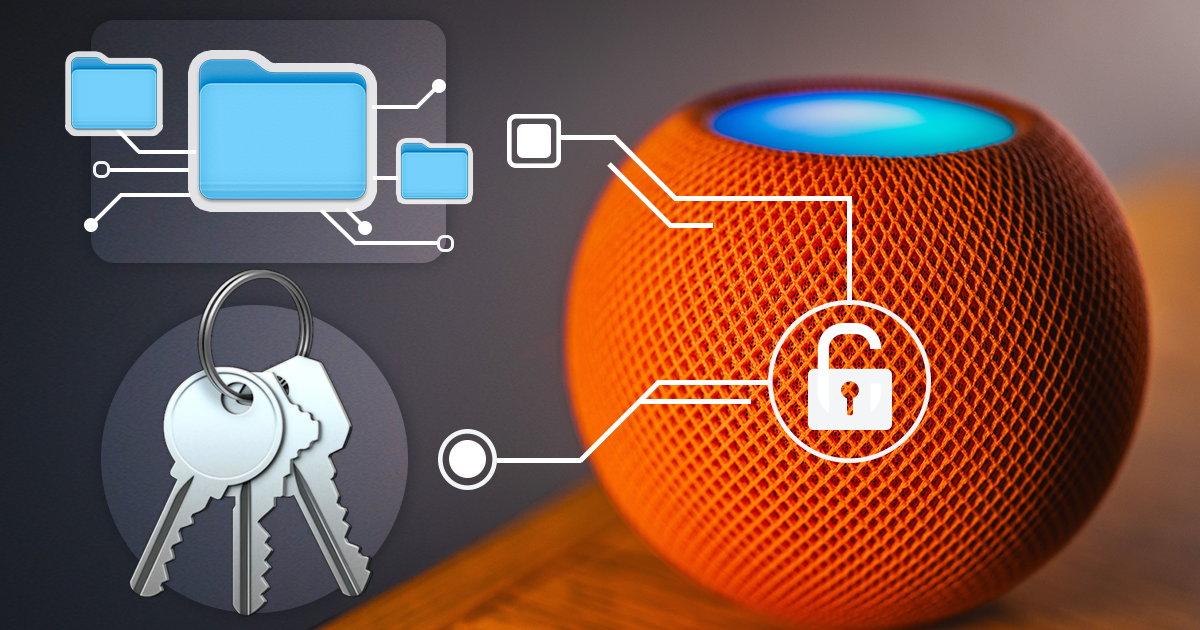

- iOS Forensic Toolkit 10.12: bootloader extraction for the Apple HomePod mini9 October, 2026
- Elcomsoft Phone Breaker 11.05: iCloud extraction support for iOS 27 and the iPhone 18 range6 October, 2026
- iOS Forensic Toolkit 10.11: bootloader extraction for Apple Watch Series 4 and 5, Apple TV 4K 2nd Gen21 September, 2026
- Elcomsoft Quick Triage 2.2 adds a timeline, a plugin system, and file system snapshots3 September, 2026
- Elcomsoft System Recovery 8.38: Built-In BitLocker TPM Exploit Library, Browser Artefact Extraction, and Imaging Checksums26 August, 2026