
“Get Verification Code” Is Missing in iOS 18 and iOS 26; Here’s Where It Went
June 19th, 2026 by Oleg AfoninCategory: «Mobile», «Tips & Tricks»
If you have an Apple device running iOS 18 or iOS 26 and gone looking for the old Get Verification Code option under Settings → [user name] → Sign-In & Security, you’ve probably noticed it’s no longer there. A quick search turns up forum threads, support comments, and even GitHub issues all reaching the same conclusion: Apple removed it. Some posts go further and call it “deprecated” or “Apple’s middle finger to users of older devices.” That conclusion is wrong. The option still exists in iOS 26. It just doesn’t show up the way it used to.
The short answer
Offline verification codes are still available in iOS 18 and 26. The catch is that the Get Verification Code button now appears only when your iPhone itself is offline – Airplane Mode on, or no network connection. When the device is online, iOS no longer shows the option in Sign-In & Security at all, which is why people assume it’s gone.
That’s the whole source of the confusion: users check on a connected phone, see nothing, and conclude the feature was killed.
How to actually get an offline code in iOS 26 and iOS 18
Here’s how to request a 6-digit two-factor authentication code:
- Put the iPhone offline: turn on Airplane Mode (or otherwise drop its connection).
- Open Settings and tap your account name at the top.
- Tap Sign-In & Security.
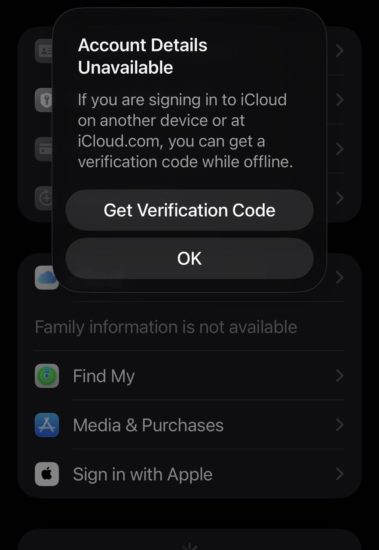
- A pop-up titled “Account Details Unavailable” appears, reading: “If you are signing in to iCloud on another device or at iCloud.com, you can get a verification code while offline.”
- Tap Get Verification Code. A six-digit code appears.
The “Account Details Unavailable” pop-up is expected behavior, not an error. It’s simply the surface Apple chose for the offline path – the device can’t load live account details with no connection, so it offers the offline code generator instead.
Why it disappeared when online
This is a behavior change, not a removal. When your iPhone is connected, iOS pushes the sign-in code to your trusted devices automatically, so Apple dropped the manual entry from Sign-In & Security on connected devices in iOS 26. Earlier versions of iOS keep the manual Get Verification Code option in Settings even while the device is online – which is why an old iPhone on iOS 15, 16, or 17 still shows it where you expect, and why those screenshots float around forums “proving” the feature still exists. It does exist; it’s just gated behind the offline state now on current iOS.
So the practical state of play across versions:
- iOS 18 and iOS 26: offline code generation is intact, but the button only appears when the device has no connection.
- iOS 17 and earlier: the manual option remains in Settings whether the device is online or offline.
Why this matters
The offline code path is the fallback that keeps people from getting locked out – signing in to iCloud.com, onto a second device, or onto older hardware that can’t receive a pushed code on its own. The reports that it was “removed” are misleading, and acting on them (for example, telling someone their only option is an old device on iOS 17) sends people down the wrong path. The feature is there in iOS 18 or iOS 26. You just have to take the phone offline to see it.
For forensic examiners, the stakes are more concrete. Cloud extraction from iCloud with tools such as Elcomsoft Phone Breaker requires passing two-factor authentication on the target account. The usual “push code to a trusted device” route is generally a non-starter here: the evidentiary device can’t be brought online, so no pushed code will ever arrive. That leaves the offline path as the practical way through. As long as the examiner can reach Sign-In & Security on a trusted device that’s been taken offline, generating the six-digit code by hand keeps the extraction workflow moving. The iOS 26 change doesn’t close that door – it just hides the handle until the device is offline, which, in this scenario, it already is.


- Elcomsoft Quick Triage 2.2 adds a timeline, a plugin system, and file system snapshots3 September, 2026
- Elcomsoft System Recovery 8.38: Built-In BitLocker TPM Exploit Library, Browser Artefact Extraction, and Imaging Checksums26 August, 2026
- EIFT Firewall: a new free tool for controlled agent sideloading3 August, 2026
- Elcomsoft Phone Breaker 11.04: more reliable downloads from iCloud Drive30 July, 2026
- Elcomsoft Phone Breaker 11.03: universal binary for Macs, SMS two-factor authentication restored16 July, 2026