
When the iCloud Backup Is the Only Copy Left
July 31st, 2026 by Oleg AfoninCategory: «General»
An iCloud backup is often the only surviving copy of data no longer on the device. Two ordinary situations show why, and neither involves anything clever on the suspect’s part. What could possibly go wrong, and how can you access the data?
Case one: the update that went wrong
Updates fail, usually for a boring reason: not enough free space. iOS downloads the update, starts installing, runs out of room, and the phone reboots into Recovery mode – the cable-and-computer screen, nothing else. Connect it to a Mac or PC and you get two options: Update, which reinstalls the system and keeps data, or Restore, which wipes it. Update is worth trying first; when it fails, Restore is what’s left, and the device comes out empty.
Third-party tools sometimes do better than Finder or iTunes here. 3uTools, for one, can occasionally pull a device out of Recovery with the data intact – worth one attempt before accepting a wipe.
Major version jumps fail worse. We’ve seen updates leave a device unable to boot at all, with reports of the passcode being rejected afterward, which points at Secure Enclave state rather than the file system. I don’t have a reliable frequency for that; what I do know is that once it happens, there’s nothing left to extract from the hardware.
Either way, the outcome for an examiner is the same. A phone stuck in Recovery mode won’t yield a file system image. The case runs on the iCloud backup made before the update.
Case two: the data that was deleted
Deleting something on an iPhone takes two taps, and the safety net is thin. Photos, Notes, Voice Memos and iCloud Drive files go to Recently Deleted and stay about 30 days. Contacts, calendars, reminders and Safari bookmarks have no trash folder, but iCloud archives earlier versions, restorable from iCloud.com under Data Recovery – note this replaces the whole set, on every device signed into the account. Everything else, chat histories and third-party app data included, has no recycle bin at all.
This is where synced data and backups diverge. Synced categories propagate a deletion within seconds of the device going online, so the cloud copy usually mirrors the device by the time anyone checks. A backup doesn’t work that way: it’s a snapshot, made at most once a day, indifferent to what happened afterward. Back up overnight, delete the file the next morning, and the file is still in last night’s backup. The older of the two stored backups can predate the deletion by weeks.
We covered the user-facing side of this recently: How to recover deleted data from your iPhone.
How and when does an iPhone back up to iCloud?
You can trigger a backup by hand: Settings, account name, iCloud, iCloud Backup, Back Up Now. Automatic backups need three conditions – locked, on power, on Wi-Fi – which in practice means overnight, and is why most iCloud backups land between 2 and 5 a.m. Since iOS 16 there’s also an option to back up over cellular, off by default.
Daily is the best case. In the field it’s often worse: conditions go unmet (phone in a pocket, charging in a car) or the account is out of space. The free tier is still 5 GB, which no modern iPhone fits into, so backups quietly fail on plenty of accounts. Never assume the newest backup is from last night; check its date.
How many backups does iCloud keep?
Two per device, most of the time; it used to be three. Occasionally there are more – the pattern we see most often is a major version upgrade, where a backup made under the previous version (iOS 18, say) survives alongside newer iOS 26 backups instead of getting rotated out. Apple documents none of this; treat it as observation, and check what the account actually holds.
One clarification on “incremental,” since it causes confusion. iCloud backups are incremental in the upload sense: the phone sends only what changed, which is why a nightly backup finishes fast. What’s stored is still a full snapshot as of that moment – no chain to assemble, and the older backup is a complete picture in its own right, not a diff.
The older backup is the one people skip, and it’s often the more useful of the two: it can predate an app uninstall, a cleanup, or the deletion you’re trying to reconstruct.
Cloud backups are not local backups
They overlap but aren’t interchangeable, and the gap decides whether a given category makes it into the file at all. An encrypted local backup with a known password is the richest single artifact short of low-level extraction. An iCloud backup omits whatever is actively syncing – no photos with iCloud Photos on, no messages with Messages in iCloud on. Those categories live in their own containers and need separate acquisition. With Advanced Data Protection enabled, the backup itself is end-to-end encrypted.
The long answer, with a category-by-category table, is in Downloading iPhone and iPad backups from Apple iCloud.
Doing it by hand
Apple gives no way to open an iCloud backup directly; the only supported action is restoring it onto a device. That leads to a manoeuvre people do attempt:
- Make a fresh backup of the device as it stands.
- Erase the device and restore from the older backup.
- Pull out whatever you were after.
- Erase again and restore the fresh backup to put things back.
It works, sometimes. It also has several ways to cost more than it returns. The fresh backup in step 1 can push the older backup out of the account – the one you actually wanted. Each restore takes hours and is all-or-nothing; there’s no way to ask for one chat thread. Synced categories come back in their current state, so anything deleted from Photos or Messages in iCloud stays deleted regardless of which backup you restore. You need the account password and a second factor at every step, and a backup made on iOS 26 won’t restore onto a device running iOS 18. For an examiner there’s a more basic problem: every restore overwrites the device, so the procedure destroys state rather than preserving it.
Where Elcomsoft Phone Breaker comes in
Elcomsoft Phone Breaker downloads iCloud backups and synced data straight from the account and writes them to disk – no device involved, nothing restored onto anything. Authenticate with the Apple Account credentials and second factor, or with a binary authentication token pulled from a computer the user had signed into, then pick which backup to download. Both stored backups are visible and either can be taken, which matters given how often the older one holds what the newer one lost.
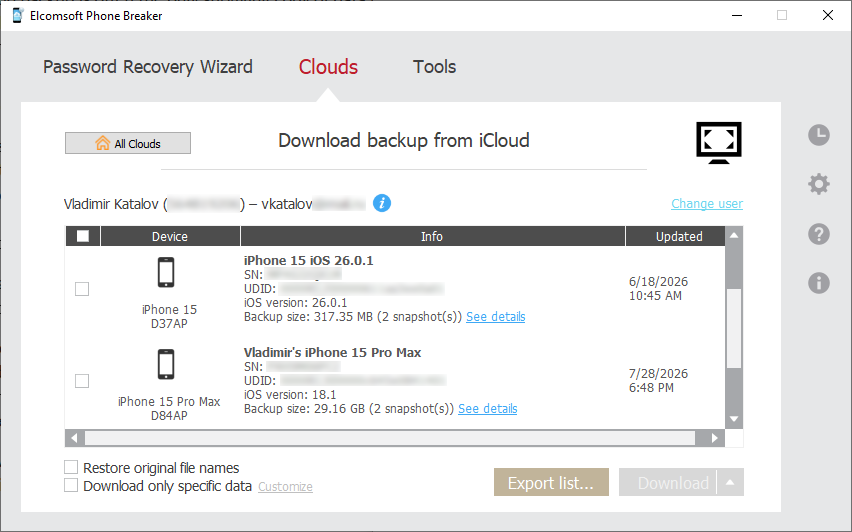
Support for iOS/iPadOS 26 backups arrived in version 11.2 – the first third-party tool to get it after Apple rebuilt the backup mechanism that release; current build is 11.04. Once downloaded, the Decrypt backup feature turns the backup into ordinary media files and SQLite databases within minutes, fast enough for triage before a full analysis pass.
Notably, backups may not be available due to iCloud storage constraints – but synchronized data (except the camera roll) requires much less cloud space, and is nearly always accessible. Less information than iCloud backups, but way more than nothing.
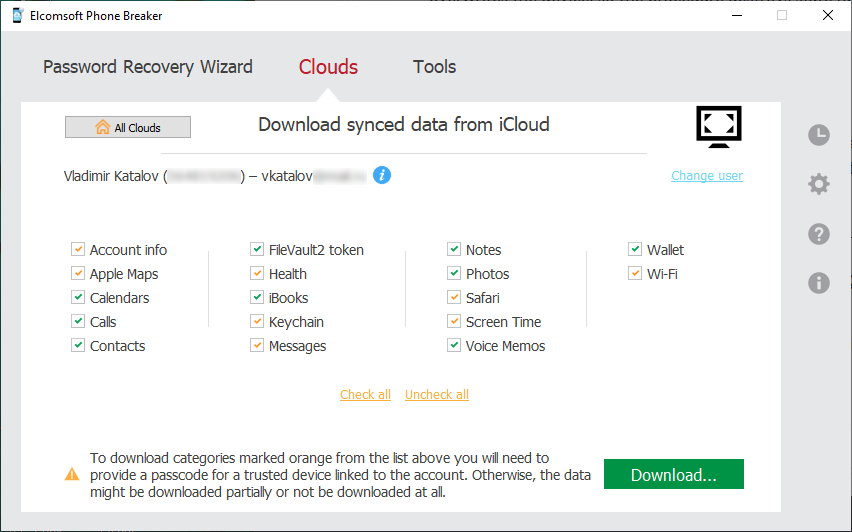
Usual caveat: you need legal authority to access the account, and that’s a question for your jurisdiction, not for us.
REFERENCES:

Elcomsoft Phone Breaker
Gain full access to information stored in FileVault 2 containers and on iPhone, iPad, and Mac devices! Download device data from Apple servers. Use an Apple ID and password or extract binary authentication tokens from computers, hard drives, and forensic disk images to download cloud data without a password. Decrypt local backups with GPU-accelerated password recovery.



- iOS Forensic Toolkit 10.12: bootloader extraction for the Apple HomePod mini9 October, 2026
- Elcomsoft Phone Breaker 11.05: iCloud extraction support for iOS 27 and the iPhone 18 range6 October, 2026
- iOS Forensic Toolkit 10.11: bootloader extraction for Apple Watch Series 4 and 5, Apple TV 4K 2nd Gen21 September, 2026
- Elcomsoft Quick Triage 2.2 adds a timeline, a plugin system, and file system snapshots3 September, 2026
- Elcomsoft System Recovery 8.38: Built-In BitLocker TPM Exploit Library, Browser Artefact Extraction, and Imaging Checksums26 August, 2026