
iOS Forensic Toolkit 10.14: app data extraction for iOS 27 and the iPhone 18 range
November 27th, 2026 by Vladimir KatalovCategory: «General»
iOS Forensic Toolkit 10.14 extends agent-based extraction to iOS and iPadOS 27.0 through 27.2.1, which is every version of iOS 27 released to date. The update covers all devices that run these versions, including the iPhone 18 range and the M5-based iPad Pro. This is the first time in a very long while when the toolkit supports low-level extraction for the latest versions of iOS on the latest hardware. Low-level extraction usually lags behind new iOS releases and new devices by many months.
The requirements are the same as in the previous build; the examiner must know the device passcode. The result is a partial file system image that contains mostly third-party app data. The agent can be installed over the air, and this method works on iPhones with Stolen Device Protection enabled. We strongly recommend reading the blog post on troubleshooting the agent’s OTA installation process here.
Before you begin: two versions of the extraction agent
This is another major point. In recent releases, we bumped iOS version support for iOS 26, then 27. The range of supported iOS versions is now very wide, spanning from iOS 12 through iOS 27. No single framework can cover this range in full. The old version of the framework does not support iOS 27, and the new one does not support iOS versions older than iOS 16, so we had to split the agent into two files, one for the older and one for the newer versions of the OS. iOS Forensic Toolkit ships two different files for the extraction agent:
- The first one supports iOS/iPadOS 12.0 through 16.6.1.
- The second one supports iOS/iPadOS 16.7 through 27.
The over-the-air installation process shows two install buttons, one for each range. The examiner chooses the agent manually, so check the iOS version under Settings > General > About before tapping a button.
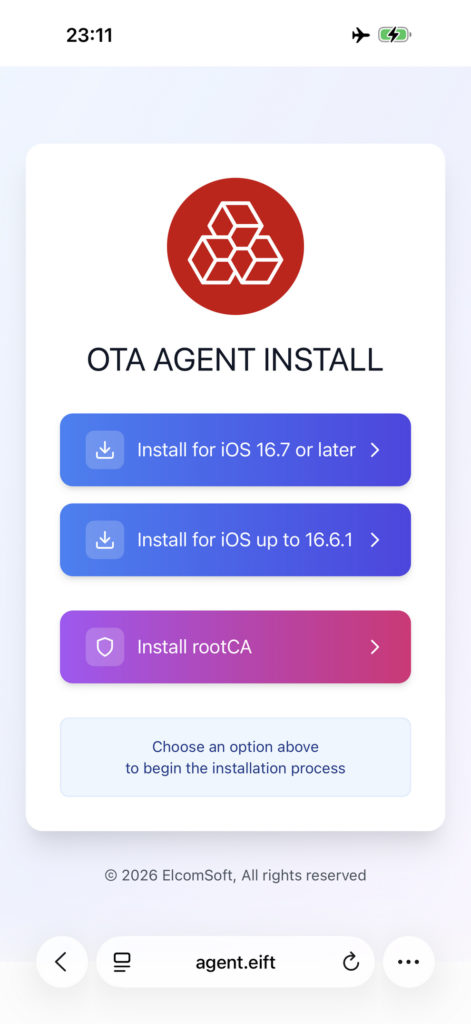
The wired process is unchanged, as the tool can reliably detect the iOS version and chooses the right file automatically.
What the agent extracts on iOS 27
The method is the same as on iOS 26, which we described in the post on iOS Forensic Toolkit 10.13. The agent reads four folders: Data/Application, Shared/AppGroup, Data/InternalDaemon, and Data/PluginKitPlugin. The first folder holds the private container of each app. The second holds App Group containers, where many messengers and email clients keep their main databases.
| Extracted | Not extracted |
|---|---|
| Instant messengers such as Telegram, WhatsApp, and Threema | System databases, text messages, iMessage |
| Social networks: X (Twitter), Instagram, Threads, TikTok | Call log, contacts, system address book |
| Third-party email clients such as Outlook and Gmail | Stock Mail app, Maps |
| Financial, navigation, and location apps | Camera roll |
| Apple Notes | Keychain |
Apple Notes is the exception among system apps, and notes may contain saved passwords. Other Apple data stored in App Group containers may also appear, depending on what your analysis tool can parse.
In iOS 26, some folders (e.g. Telegram) were missing container metadata, which made some analysis tools fail to import their data. In iOS 27, container metadata is missing in both folders.
Container folders have UUID names that do not identify their apps. Analysis tools usually find the owning app in the .com.apple.mobile_container_manager.metadata.plist file inside each container. On iOS 26, the agent could not read this file in Shared/AppGroup containers. On iOS 27, the agent cannot read it in Data/Application containers either. The app data in both folders is complete, and only the metadata files are absent.
Without these files, some analysis tools cannot assign containers to apps and show little or no data for the affected apps. iOS Container Metadata Builder now recreates the missing files for both folders. We also fixed several bugs in plist creation that we found while working on iOS 27.
The updated metadata utility
Finally, we have updated the metadata utility. A word about what it is for. With this release, we tested Magnet AXIOM, MSAB XRY, and Cellebrite Physical Analyzer. All three handled our extractions correctly without the injected .plist files, and adding the files did not change their results. We know of at least one other parser that does not work correctly without them. We cannot be completely sure about the three tools either, because we cannot test every app in the App Store. So if you have time, we still recommend trying the .plist version of the extraction and comparing the result in your favorite tool. It may produce a better, more complete result. The three tools also parsed different amounts of data from the same extraction; this has nothing to do with the .plist files, but it shows that one tool is never enough and that every result needs cross-checking. Of the three, AXIOM was the only one that parsed the data of MAX, a Russian messenger, although it labeled the app as TamTam.
Back to the utility itself. In iOS Forensic Toolkit 10.13, the first step was unpacking the .tar archive into a folder. This step causes problems on Windows. The archive is created from the iOS file system, and Windows applies stricter rules to paths and file names:
- Windows limits a path to 260 characters by default (
MAX_PATH), and paths inside iOS app containers can be longer. - Several characters that are valid in iOS file names are invalid in Windows file names, including
:,?,*, and". - Windows treats two names that differ only by case as the same file, and iOS stores them as two files.
Depending on the archiver, files that break these rules are skipped, renamed, or overwritten during unpacking.
We updated the utility to work on the archive directly. It takes the original .tar as input and writes a new .tar as output. The new archive contains all original files unchanged, plus the generated plist files, without unpacking anything to the Windows file system. Correct processing of the archive now depends entirely on the analysis tool.
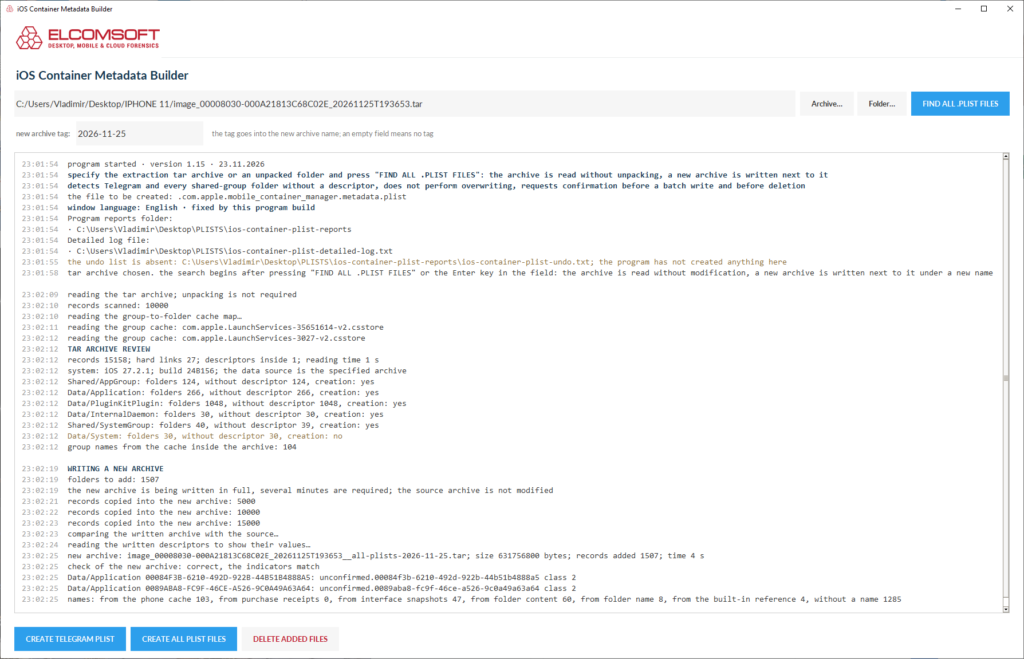
The new workflow now looks like this:
- Run iOS Container Metadata Builder.
- Click Archive… and select the .tar archive that the extraction agent produced. Optionally click Folder… to specify where the output .tar will be stored (default: same path as the .tar archive).
- Click FIND ALL .PLIST FILES and wait for the scan to finish. The tool reads the archive without unpacking it.
- Click CREATE ALL PLIST FILES to create the plist files for all containers, or CREATE TELEGRAM PLIST for Telegram only. The tool writes a new .tar archive next to the original. The name of the new archive ends with the tag from the new archive tag field, which is a date by default.
- Open the output .tar archive in your analysis tool.
Our advice on documentation has not changed. Keep the original .tar and record its hash before you run the utility. Save the log, which records the size and SHA-256 hash of each generated file. State in your report which containers received generated metadata files.
Download iOS Container Metadata Builder
The best result without a kernel exploit: extended logical extraction plus app data
When no kernel exploit exists for full file system extraction, the most complete result comes from two extractions combined: extended logical acquisition and agent-based extraction of app data. The formats and protocols, however, are very different between the various data sources, and straightforward implementation is impossible across all of them. One must use specialized software during the post-processing, parsing and analysis stage. On the other hand, stacking the partial file system and the backup is possible, and we are working on our own tool for merging the two datasets. It’s still in the early development stage; stay tuned for updates.
Anyway; extended logical acquisition contains the following:
- A local backup: the data of system apps, including messages, contacts, and call history.
- Media extraction: the complete photo library with its metadata.
- Shared files: the documents that apps expose through file sharing.
- Diagnostic logs including Apple Unified Logs.
The keychain is decryptable only in password-protected backups; some data is only included in password-protected backups and omitted from unencrypted ones. In a backup without a password, keychain items are encrypted with a key that is tied to the device hardware and cannot be decrypted. iOS Forensic Toolkit handles this automatically. It sets a known temporary password before it pulls the backup, and it removes the password when the backup is complete.
All four parts require pairing the device with the computer, which can be an issue if an iPhone has active Stolen Device Protection, which also requires Face ID or Touch ID for pairing away from familiar locations. iPads lack this protection.
Stolen Device Protection: what to do at the time of seizure
The time of seizure is often the last moment when the owner and the device are together, and sometimes at a familiar location. Starting with iOS 26.4, Apple turns Stolen Device Protection on automatically, so expect it on most iPhones. The actions taken at this moment determine whether logical acquisition is possible later.
If the owner cooperates and you have the legal authority, there are three options:
- You can pair the iPhone with your computer on the spot. The owner confirms the pairing with Face ID or Touch ID, and the pairing record allows logical acquisition later in the lab.
- You can turn the protection off at a familiar location such as the owner’s home or workplace. No delay applies there, unless the owner has set the protection to apply always.
- You can turn the protection off away from familiar locations. This requires Face ID or Touch ID, a security delay of one hour, and a second biometric confirmation after the delay.
Plan for the delay in the third case. Start the process at once and keep the owner available for the second confirmation.
Stolen Device Protection exists on iPhones only. iPads pair with the passcode alone.
If none of these options is possible, wired pairing remains blocked. Over-the-air installation of the agent is then the only route, and app data is the only data that can be extracted.
Compatibility and choosing the extraction method
The choice depends on the iOS version and on whether the device can be paired with the computer.
| Situation | Recommended method |
|---|---|
| iPhone on iOS 26.0 to 26.7.3 or 27.0 to 27.2.1, Stolen Device Protection active, no biometrics | Install the agent over the air and extract app data. Wired pairing is blocked, and logical acquisition is unavailable. |
| iPhone or iPad on iOS/iPadOS 26.0 to 26.7.3 or 27.0 to 27.2.1, pairing possible | Run extended logical acquisition and agent-based extraction in either order. The utility that merges the two results is still in development. |
| iOS/iPadOS versions with kernel-level support | Use full file system extraction, which returns the most data. Check the compatibility chart in the user manual. |
| iOS/iPadOS 18.7.2 to 18.7.12 | The extraction agent does not support these versions. Extended logical acquisition is the only method, and it requires pairing. |
| iOS/iPadOS 27.3, currently in beta | The sandbox escape is closed. Extended logical acquisition is the only method, and it requires pairing. |
At the time of writing, the extraction agent works on all currently released versions of iOS and iPadOS 26 and 27 on all hardware, including the iPhone 18 range and the M5-based iPad Pro. The coverage has limits. Full file system extraction is still available only up to iOS 18.7.1, plus iOS 26.0 and 26.0.1. On the other iOS 26 versions and on iOS 27, the extracted image is far from complete and contains mostly third-party app data. There is also a gap in the iOS 18 range: versions 18.7.2 through 18.7.12 are not supported by the agent.
This coverage is temporary. We tested the beta of iOS 27.3, and the vulnerability is fixed in it. Apple may also release a fix for iOS 26.
If you have devices on iOS 26 or iOS 27 that were set aside because their app data could not be extracted, you can process them now.
The exploit takes longer on older models such as the iPhone Xr, Xs, and 11. On an iPhone 11 running iOS 27, it took about six minutes in our test. Some operations in this exploit depend directly on processor speed, so newer devices usually finish within a minute.
Over-the-air installation of the agent is the part of this workflow that we are most satisfied with. It requires no wired pairing, so Stolen Device Protection does not block it, and it works with both agents across the supported range.
Summary
iOS Forensic Toolkit 10.14 extracts app data from iPhones and iPads on iOS and iPadOS 27.0 through 27.2.1, including the iPhone 18 range and the M5-based iPad Pro. The distribution now contains two agents, and the examiner chooses between them during over-the-air installation. The metadata utility works on .tar archives and recreates container metadata for both app folders. When pairing is possible, combine agent-based extraction with extended logical acquisition. The utility that merges the two results into a single archive is still in development.
REFERENCES:

Elcomsoft iOS Forensic Toolkit
Extract critical evidence from Apple iOS devices in real time. Gain access to phone secrets including passwords and encryption keys, and decrypt the file system image with or without the original passcode. Physical and logical acquisition options for all 64-bit devices running all versions of iOS.
Elcomsoft iOS Forensic Toolkit official web page & downloads »

- iOS Forensic Toolkit 10.14 adds agent-based file system extraction for current-generation iOS 2727 November, 2026
- Elcomsoft Quick Triage 2.3 adds disk image mounting, direct archive browsing, and smart folder categories23 November, 2026
- iOS Forensic Toolkit 10.13 adds agent-based file system extraction for the entire iOS 26 range17 November, 2026
- iOS Forensic Toolkit 10.12: bootloader extraction for the Apple HomePod mini9 October, 2026
- Elcomsoft Phone Breaker 11.05: iCloud extraction support for iOS 27 and the iPhone 18 range6 October, 2026